Showing posts with label bill johnson. Show all posts

November 22, 2016

Revit MEP Beyond the Basics: Project Setup & Workflow

Hello All, Bill Johnson - Senior MEP/AEC Tech at Ideate writing to you today. I am pleased to introduce to you a brand-new course titled, “Revit MEP Beyond the Basics: Project Setup & Workflow.” This course has been a long time in the making, with lots of on-going discussion and reiterations.

One of the main drivers for this course was driven home to me during my most recent Revit MEP Family class. The question was asked, "Bill, besides specific MEP Families, what else should we have setup in our Revit discipline specific templates?” “What should be setup,” indeed! This is exactly the question our new class will explore. Plus, we will cover some of the more important, yet sometimes overlooked, aspects of Revit MEP, starting with the Three Major Project Setup types. And here you thought there was only one!

We will also review several key setup and configuration items that should be addressed by the advanced Revit user to help with productivity issues and consistency within a project. We will focus on modifying Project and Family templates that are included with Revit MEP, and will review working with Phases and customizing Panel Schedules.

This class will be more than a lecture, it will be a vehicle through which you can share what you have learned, such as the pros and cons of Phasing and Design Options in Revit MEP. You will, of course, also learn how to migrate your AutoCAD settings into Revit MEP; this covers the system environment and the project settings, which help you control the appearance of components and sub-components with a Project. It is our goal that by the end of this class you will have a solid start on your office template, which can be then used as your default template.

Some of the topics to be covered will be:
• Views and view templates
• Using Scope Boxes for view size consistency and manipulation of angled building plans
• Tips for cleaning up architect’s files
• Controlling display of information within linked files
• Separating mechanical equipment types into schedules
• Addressing why pipes seem to have difficulty being drawn when connecting to fixtures
• Differentiate circuited vs. uncircuited electrical devices

Revit itself is one of the most used Building Information Modeling applications across different disciplines, including architecture, MEP and structural. The Revit MEP Beyond the Basics course will offer Revit MEP professionals the opportunity to enhance their knowledge and refine their skills using the software.

The first class will be taught online in two, four-hour days, on December 19th and 20th. In addition to this class, we at Ideate have increased our offerings to include Revit for Interior Architecture, Revit Architecture Families and AutoCAD Advanced. This is a very exciting time for our training department.

For a more in-depth look into our Revit MEP Beyond the Basics: Project Setup & Workflow. – Online class and other new Ideate online training offerings, visit the Ideate website.

http://www.ideateinc.com/about/about.htmlBill Johnson
Senior Application Specialist MEP/AEC Solutions

Bill has over 25 years experience in applying MEP & AEC design solutions for large commercial companies, this has led to actively developed Autodesk® Revit® implementation strategies, techniques, and procedures for architectural and MEP companies. He has worked for TEECOM Design Group, GTE/GTEL, Greg LeDoux and Associates, and Scottish Power in England. Bill is an Autodesk MEP Implementation Certified Expert, and has been the Lead Designer for several multi-million dollar communication sites which have included structural, electrical, HVAC, conduit, cable plans and equipment layouts. He graduated from the Pasadena Institute of Technology and has a Sustainable Design Certification from the University of California at Berkeley.

November 1, 2016

Revit MEP Families – Diamonds in the Rough

I bet everyone asks the same question when they start to learn Revit: What is a Family?

When you start a new Revit file, you have the option to choose from Project, Family, Titleblock, or Annotation Symbol. It is easy to understand what Project, Titleblock, and Annotation Symbol are without further explanation. But what is a Family?

Families are the components you use to build your model, such as walls, windows, and doors. For the Mechanical, Electrical and Plumbing (MEP) disciplines, Families are items like Mechanical Equipment, Electrical Equipment, and Lighting Fixtures. Each Family can have multiple types of components comprised of differing sizes, materials, or parameter variables.

One of the many keys to mastering Autodesk Revit MEP software is the ability to create intelligent, parametric Families for your content libraries. It's not as easy as simply building a 3D model. Parameters, and the valuable data they contain, make up one of the more powerful functions at the core of Building Information Modeling (BIM), and Autodesk Revit-based software products. The information contained in parameters is of special interest to MEP engineers, and any user who learns how working with parameters in Revit MEP affects project workflow, construction documentation, and the transfer of valuable data.

Recently, we started to receive more requests for training specifically related to Revit MEP Families. With the expansion of our virtual training program, now is the perfect time for us to introduce a new course focusing on those Revit Families specific to MEP projects and designers.

Scheduled over two, four-hour virtual sessions, our Revit MEP Families class will show you how to use the modeling tools in the Revit Family Editor. You will learn the process of creating intelligent parameters to properly control family dimensions, behavior, and visibility. Additionally, we will teach you how to make sure your Families "play nice" with other elements in your model.

Learning Objectives

At the end of this class, you will be able to:

• Employ the modeling tools found in the Family Editor
• Determine the correct Family template on which to base custom content
• List various types of Revit parameters, and explain how they affect your documents, workflow, and time
• Use parameters in the Family, and Project environment
• Work with nested Families
• Apply Revit MEP Connectors and understand how data flows between elements
• Understand Lookup Tables, and how to use them in conjunction with Revit MEP families of certain categories

So, whether you are looking to create that amazing Family that behaves and prints exactly the way you want it to, or want to customize an existing Family to your project needs, mastering the art of the parametric Family is a huge productivity booster, and it’s a lot of fun, too!

Join us for our first Revit MEP Families class on November 21st-22nd. Class times, and additional registration details can be found on the Ideate, Inc. website.

http://www.ideateinc.com/about/about.htmlBill Johnson
Senior Application Specialist MEP/AEC Solutions

Bill has over 25 years experience in applying MEP & AEC design solutions for large commercial companies, this has led to actively developed Autodesk® Revit® implementation strategies, techniques, and procedures for architectural and MEP companies. He has worked for TEECOM Design Group, GTE/GTEL, Greg LeDoux and Associates, and Scottish Power in England. Bill is an Autodesk MEP Implementation Certified Expert, and has been the Lead Designer for several multimillion dollar communication sites, which have included structural, electrical, HVAC, conduit, cable plans, and equipment layouts. He graduated from the Pasadena Institute of Technology and has a Sustainable Design Certification from the University of California at Berkeley.


September 1, 2016

Revit 2017: Filling Gaps in a Revit Fabrication Model

Fabrication detailing in Revit 2017 supports different MEP detailing workflows. In this post, I'll provide a brief rundown for each.

For each fabrication model you must specify a fabrication configuration and load services. You can then place parts to create a detailed fabrication model in Revit, or convert an existing Revit model with generic duct, pipe, and electrical containment parts to a model that uses fabrication parts.

Continue to add fabrication parts and modify the elements in the model as needed. For all those new to the feature this can be found on the Systems tab > Fabrication Part:

Content: 

Download sample fabrication configurations for use with the MEP features of Revit. The sample fabrication configurations contain generic US Imperial and UK Metric content.

Download the Imperial and Metric sample configurations

  1. Click the file names: www.autodesk.com/revit-2017-mep-fab-sample-content-imperial and www.autodesk.com/revit-2017-mep-fab-sample-content-metric.
  2.  
  3. Open the files. The files are installed to:
  • C:/Users/Public/Documents/Autodesk/Fabrication /Revit MEP Imperial Content/Vx.xx
  • C:/Users/Public/Documents/Autodesk/Fabrication /Revit MEP Metric Content/Vx.xx
However, to access and use a full set of real-world content, I would suggest an installation of any of the Autodesk Fabrication products:
Trim and Extend:

Use the Trim/Extend tool to fill a gap between two straights, For example, when connecting a duct branch to a main or pipework to a header:

Quick Connect:

Use the Quick Connect tool to fill a gap between a fitting and another straight where no additional fittings are needed. 


Please note: the Quick Connect command is available only when a fitting is selected. The command is disabled when a straight is selected. You can use this tool to drag the connector onto another part to connect them:

Route & Fill:

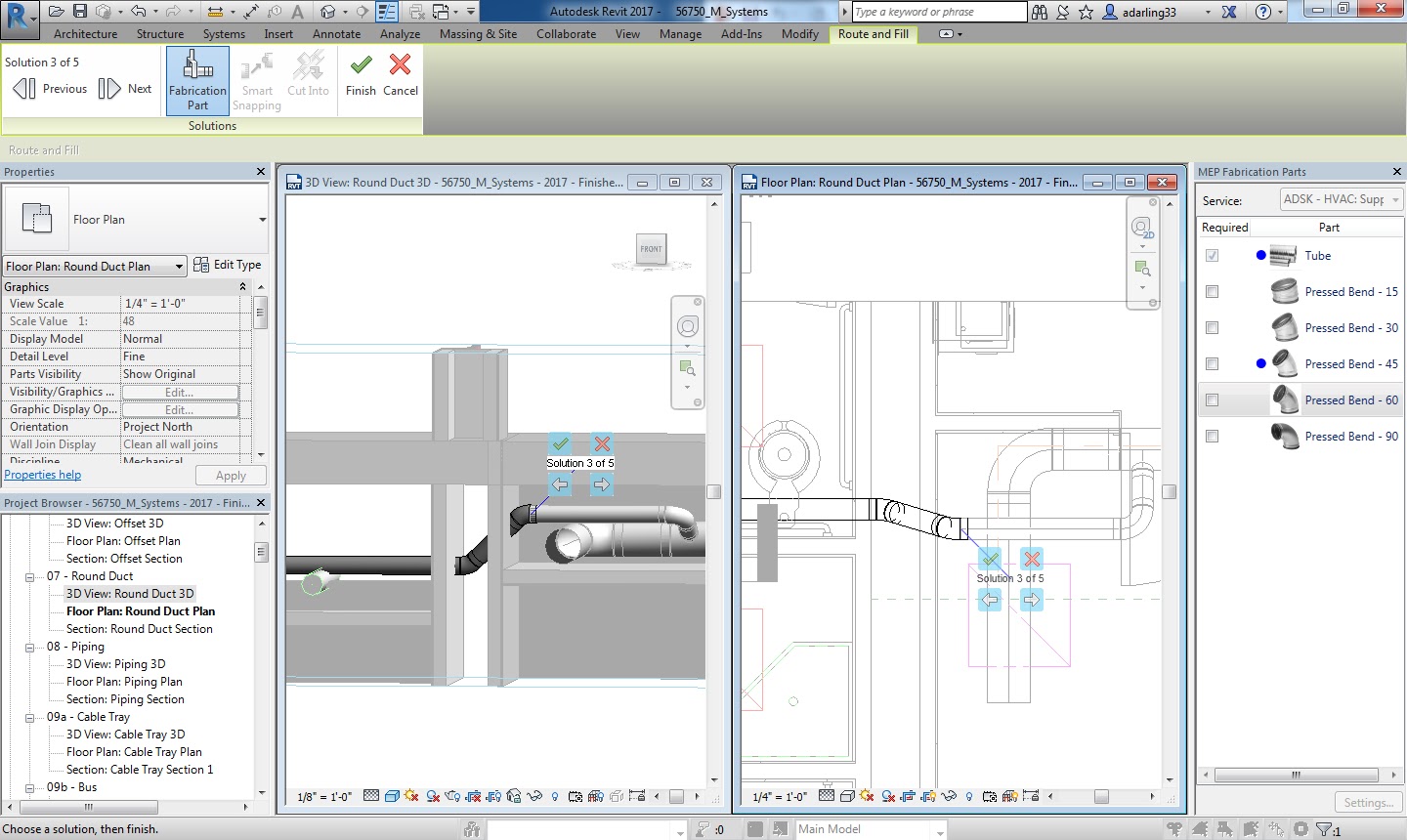
Use the Route and Fill tool to add parts between two open connectors in a faster, more efficient way than placing parts one-by-one. The Route and Fill tool provides one or more solution depending on the service. You can narrow the number of solutions by filtering the fittings used, switch direction of the route, and even filter the solutions to force it to use certain parts:

Per the Autodesk help file, one thing to remember with this feature is that “A route must exist in a single plane. Solutions that require two planes or three bends are not supported.” This means varying height connections that also require bends will not automatically connect. It may be quicker using the “Design to Fabrication” feature for these situations.

Design to Fabrication:

Use the Design to Fabrication tool to convert a design model with Revit elements to a fabrication model with LOD 400 fabrication parts.

You can convert selected parts, or an entire duct or pipe network. The Design to Fabrication tools provide a more efficient workflow, since the fabrication model does not need to be redrawn from scratch. The result of the conversion is based on the design line algorithm used by the Autodesk Fabrication products, and uses the same content available in the Autodesk Fabrication products:

It's important to note, this is a one-way process; once the Revit MEP Design has been converted to Fabrication Parts, it cannot be reversed. I would suggest using a copy of the MEP Design to convert, as this gives us the benefit of linking the projects for comparison.

Swap Parts:


In 2017 we now have the ability to swap Fabrication parts in the same way as Revit Families:

Optimize Lengths:

This feature allows you to optimize the straight lengths of generic ductwork by adding, removing, or modifying lengths of straight segments.


Please Note: If a straight is pinned, or part of a group, it will not be optimized.

To go in-depth with each of these features, check out my videos in the Revit Architecture, Revit MEP and Revit Structure 2017 playlist on Ideate Inc.'s YouTube Chanel.

Thank you for reading. For more information on the software solutions, training and consulting Ideate provides, please visit the Ideate Inc. website.

Senior Application Specialist MEP/AEC Solutions
Bill has over 25 years experience in applying MEP & AEC design solutions for large commercial companies, this has led to actively develop Autodesk® Revit® implementation strategies, techniques, and procedures for architectural and MEP companies. He has worked for TEECOM Design Group, GTE/GTEL, Greg LeDoux and Associates, and Scottish Power in England. Bill is an Autodesk MEP Implementation Certified Expert, and has been the Lead Designer for several multimillion dollar communication sites which have included structural, electrical, HVAC, conduit, cable plans and equipment layouts. He graduated from the Pasadena Institute of Technology and has a Sustainable Design Certification from the University of California at Berkeley.

August 25, 2016

Revit 2017: Trim and Extend, and Quick Connect!


Thanks to the enhanced functionality of Trim and Extend, and Quick Connect in Revit 2017 MEP designers can now fill in the gaps in a Revit Fabrication model for ductwork, pipework, and electrical containment.

With the Trim and Extend tool you can fill gaps between two straight runs of duct, pipe, cable tray or conduit. And, similarly, the Quick Connect tool allows you to fill gaps between a fitting and a straight run where no additional fittings are needed.

Here is a short video demonstrating how to use both Trim and Extend, and Quick Connect with Revit Fabrication Parts. 


Thank you for reading. For more information on the software solutions, training and consulting Ideate provides, please visit the Ideate Inc. website.


Senior Application Specialist MEP/AEC Solutions
Bill has over 25 years experience in applying MEP & AEC design solutions for large commercial companies, this has led to actively develop Autodesk® Revit® implementation strategies, techniques, and procedures for architectural and MEP companies. He has worked for TEECOM Design Group, GTE/GTEL, Greg LeDoux and Associates, and Scottish Power in England. Bill is an Autodesk MEP Implementation Certified Expert, and has been the Lead Designer for several multimillion dollar communication sites which have included structural, electrical, HVAC, conduit, cable plans and equipment layouts. He graduated from the Pasadena Institute of Technology and has a Sustainable Design Certification from the University of California at Berkeley.
August 16, 2016

Revit 2017: Route and Fill

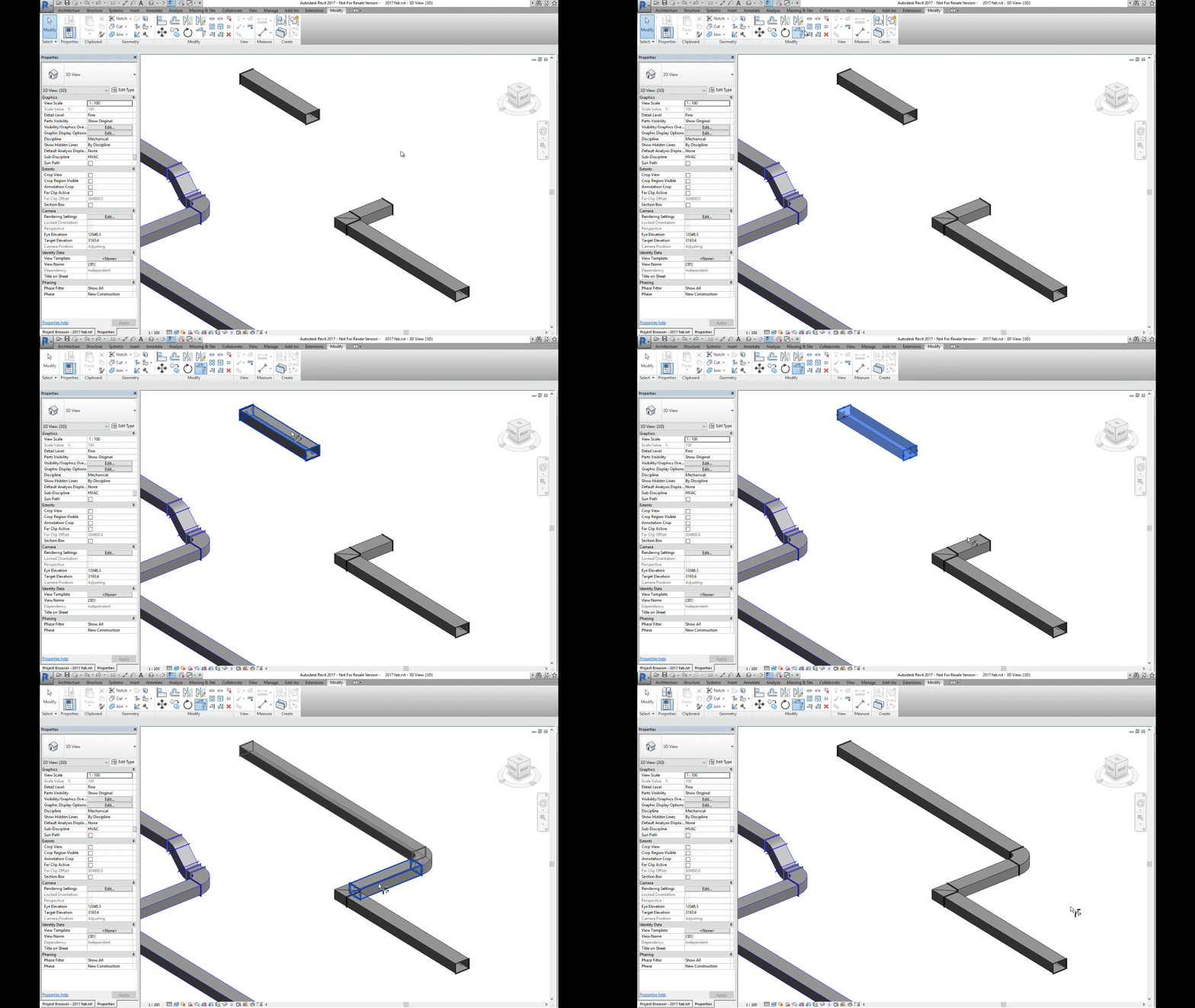
Using the new Route and Fill feature in Revit 2017, MEP designers can now "fill in the gaps" in a Revit Fabrication model for ductwork, pipework, and electrical containment.
The Route and Fill tool conveniently allows you to add parts between two open connectors in a faster, more efficient way than placing parts one-by-one.

Check out my short video demonstrating how to use the Route and Fill tool with Revit Fabrication Parts. 


Thank you for reading. For more information on the software solutions, training and consulting Ideate provides, please visit the Ideate Inc. website.

Senior Application Specialist MEP/AEC Solutions
Bill has over 25 years experience in applying MEP & AEC design solutions for large commercial companies, this has led to actively develop Autodesk® Revit® implementation strategies, techniques, and procedures for architectural and MEP companies. He has worked for TEECOM Design Group, GTE/GTEL, Greg LeDoux and Associates, and Scottish Power in England. Bill is an Autodesk MEP Implementation Certified Expert, and has been the Lead Designer for several multimillion dollar communication sites which have included structural, electrical, HVAC, conduit, cable plans and equipment layouts. He graduated from the Pasadena Institute of Technology and has a Sustainable Design Certification from the University of California at Berkeley.

August 11, 2016

Revit 2017: Design to Fabrication

It's hard to believe it's now August, and we still haven't covered all of the powerful features in Revit 2017!

In this post, we will review the new Design to Fabrication feature

Revit MEP designers can now “convert generic Revit MEP elements to Fabrication Model” with LOD 400 detail Fabrication Parts. This means you can convert selected parts or an entire duct or pipe network.

The Design to Fabrication tools provide a more efficient workflow, since the fabrication model does not need to be redrawn from scratch.

Here is a short video demonstrating how to use the Route and Fill with Revit Fabrication Parts. 

Thank you for reading. For more information on the software solutions, training and consulting Ideate provides, please visit the Ideate Inc. website.

Senior Application Specialist MEP/AEC Solutions
Bill has over 25 years experience in applying MEP & AEC design solutions for large commercial companies, this has led to actively develop Autodesk® Revit® implementation strategies, techniques, and procedures for architectural and MEP companies. He has worked for TEECOM Design Group, GTE/GTEL, Greg LeDoux and Associates, and Scottish Power in England. Bill is an Autodesk MEP Implementation Certified Expert, and has been the Lead Designer for several multimillion dollar communication sites which have included structural, electrical, HVAC, conduit, cable plans and equipment layouts. He graduated from the Pasadena Institute of Technology and has a Sustainable Design Certification from the University of California at Berkeley.

August 1, 2016

e-Learning - Upcoming Revit, Civil 3D and Ideate Software Classes

Join the Ideate Tech Experts for eLearning – live online classes that provide your entire organization with easy access to premium education.
8.3::Revit 201:
Residential Construction in Revit Architecture
8.4::Ideate Software:
Streamline Revit MEP Workflows with
Ideate BIMLink
8.5::Revit 201:
Revit MEP and Low Voltage Systems
8.9::Infrastructure 201:
Civil 3D-Settings and Styles
8.11::Ideate Software:
Display Non-BIM Data with
Ideate Sticky
8.12::Revit 201:
Revit Server
8.25::Ideate Software:
Simplify Revit Model Management with
Ideate BIMLink 
9.1::Ideate Software:
Audit Your Revit Projects with
Ideate Explorer
Each class is designed to give you specific, improved results in a particular topic. You can interact with the instructor right from your own office, while eliminating travel time. Because the class schedule rotates, you can easily select your topics of interest and choose the day which best meets your schedule.

Click here for class descriptions, times and registration link. Questions? Contact education@ideateinc.com.

Get It. Know It. Use It.

July 11, 2016

e-Learning - Upcoming Revit and Ideate Software Classes

Join the Ideate Tech Experts for eLearning – live online classes that provide your entire organization with easy access to premium education.
7.12::Revit 201:
Shared Parameters and Schedules in Revit MEP
7.14::Ideate Software:
Simplify Revit Model Management with
Ideate BIMLink
7.15::Revit 201:
Revit Phasing A-Z
7.19::Revit 201:
Revit for Interior Designers
7.26::Revit 201:
Working with Wall Types
7.27::Revit 201:
Leveraging Design Options
7.28::Ideate Software:
Audit Your Revit Projects with
Ideate Explorer
8.4::Ideate Software:
Streamline Revit MEP Workflows with
Ideate BIMLink
Each class is designed to give you specific, improved results in a particular topic. You can interact with the instructor right from your own office, while eliminating travel time. Because the class schedule rotates, you can easily select your topics of interest and choose the day which best meets your schedule.

Click here for class descriptions, times and registration link. Questions? Contact education@ideateinc.com.

Get It. Know It. Use It.

May 16, 2016

Classroom Training - Open AutoCAD, AutoCAD Civil3D and Revit Classes

Know It. Ideate Training.

Position yourself to land dream projects. Tap the full potential of your software solutions. Increase your facility, fluidity and capability to maximize the value of your precision software tools.
5.19::Portland
Revit Architecture Families
5.24-5.26::San Francisco
AutoCAD Fundamentals
6.1-6.2::San Jose
Revit MEP - Mechanical Fundamentals
6.14-6.16::San Jose
Revit Architecture Fundamentals
6.22-6.23::Sacramento
Civil 3D for Surveyors
6.22-6.23::Seattle
Revit Architecture Beyond the Basics
Know your software. Sign up now! 

Contact the Ideate Training Department at 888.662.7238 x1012 or education@ideateinc.com

May 9, 2016

e-Learning - Upcoming Revit and Ideate Software Classes

Join the Ideate Tech Experts for eLearning – live online classes that provide your entire organization with easy access to premium education.
5.12::Ideate Software:
Auditing Your Revit Project with
Ideate Explorer 
5.13::Revit 201:
Documenting Your Project in Revit MEP: Keynotes and General Notes
5.19::Ideate Software:
Revit Model Management with
Ideate BIMLink 
5.20::Revit 201:
Converting Blocks to Families & Working with 2D Content in Revit
5.24:Revit 201:
Revit Import into 3ds Max

5.25::Ideate Software:
Ideate BIMLink for Revit MEP Projects
5.27::Revit 201:
Getting Started with Presentations in Revit Architecture
6.1::Ideate Software:
Introduction to Ideate Sticky
Each class is designed to give you specific, improved results in a particular topic. You can interact with the instructor right from your own office, while eliminating travel time. Because the class schedule rotates, you can easily select your topics of interest and choose the day which best meets your schedule.

Click here for class descriptions, times and registration link. Questions? Contact education@ideateinc.com

Get It. Know It. Use It.

Classroom Training - Open Revit Architecture, Revit MEP and AutoCAD Classes

Know It. Ideate Training.

Position yourself to land dream projects. Tap the full potential of your software solutions. Increase your facility, fluidity and capability to maximize the value of your precision software tools.
5.19::Portland
Revit Architecture Families
5.24-5.26::San Francisco
AutoCAD Fundamentals
5.24-5.26::San Francisco
Revit Architecture Fundamentals
5.24-5.25::San Jose
Civil 3D for Surveyors
6.1-6.2::San Jose
Revit MEP - Mechanical Fundamentals
Know your software. Sign up now! 

Contact the Ideate Training Department at 888.662.7238 x1012 or education@ideateinc.com

May 2, 2016

Classroom Training - Open Revit Architecture, Revit MEP and AutoCAD Classes

Know It. Ideate Training.

Position yourself to land dream projects. Tap the full potential of your software solutions. Increase your facility, fluidity and capability to maximize the value of your precision software tools.
5.6::San Francisco
Revit Architecture Families
5.9-5.10::San Francisco
Revit MEP - Electrical Fundamentals
5.10-5.12::Sacramento
Revit Architecture Fundamentals
5.19::Portland
Revit Architecture Families
5.24-5.26::San Francisco
AutoCAD Fundamentals
5.24-5.25::San Jose
Civil 3D for Surveyors
Know your software. Sign up now! 

Contact the Ideate Training Department at 888.662.7238 x1012 or education@ideateinc.com

April 25, 2016

Classroom Training - Open Revit Architecture, Revit MEP and AutoCAD Classes

Know It. Ideate Training.

Position yourself to land dream projects. Tap the full potential of your software solutions. Increase your facility, fluidity and capability to maximize the value of your precision software tools.
5.3-5.5::Seattle
Revit Architecture Fundamentals
5.6::San Francisco
Revit Architecture Families
5.9-5.10::San Francisco
Revit MEP - Electrical Fundamentals
5.10-5.12::Sacramento
Revit Architecture Fundamentals
5.19::Portland
Revit Architecture Families
5.24-5.25::San Jose
Civil 3D for Surveyors
Know your software. Sign up now! 

Contact the Ideate Training Department at 888.662.7238 x1012 or education@ideateinc.com

April 18, 2016

Classroom Training - Open Revit MEP, Revit Architecture and AutoCAD Classes

Know It. Ideate Training.

Position yourself to land dream projects. Tap the full potential of your software solutions. Increase your facility, fluidity and capability to maximize the value of your precision software tools.
5.3-5.5::Seattle
Revit Architecture Fundamentals
5.6::San Francisco
Revit Architecture Families
5.9-5.10::San Francisco
Revit MEP - Electrical Fundamentals
5.10-5.12::Sacramento
Revit Architecture Fundamentals
5.19::Portland
Revit Architecture Families
5.24-5.25::San Jose
Civil 3D for Surveyors
Know your software. Sign up now! 

Contact the Ideate Training Department at 888.662.7238 x1012 or education@ideateinc.com

April 11, 2016

Classroom Training - Open Revit Architecture, Revit MEP and AutoCAD Classes

Know It. Ideate Training.

Position yourself to land dream projects. Tap the full potential of your software solutions. Increase your facility, fluidity and capability to maximize the value of your precision software tools.
4.19-4.20::Sacramento
Revit MEP - Electrical Fundamentals
4.28-4.29::San Francisco
AutoCAD Beyond the Basics
5.3-5.5::Seattle
Revit Architecture Fundamentals
5.6::San Francisco
Revit Architecture Families
5.9-5.10::San Francisco
Revit MEP - Electrical Fundamentals
5.10-5.12::Sacramento
Revit Architecture Fundamentals
Know your software. Sign up now! 

Contact the Ideate Training Department at 888.662.7238 x1012 or education@ideateinc.com

March 28, 2016

e-Learning - Upcoming Infrastructure, Revit, and Ideate Software Classes

Join the Ideate Tech Experts for eLearning – live online classes that provide your entire organization with easy access to premium education.
3.29:Revit 201:
Getting Started with Roof Framing in Revit
4.1::Revit 201:
Revit MEP and Low Voltage Systems
4.7::Ideate Software:
Introduction to
Ideate Sticky
4.8::Infrastructure 201:
Data Shortcuts
4.13::Ideate Software:
Auditing Your Revit Project with Ideate Explorer
4.14::Revit 201:
Making Titleblocks and Drawing Lists
4.15::Navisworks 201:
Clash Detection
4.21::Ideate Software:
Revit Model Management with Ideate BIMLink
4.28::Ideate Software:
Ideate BIMLink for Revit MEP Projects
Each class is designed to give you specific, improved results in a particular topic. You can interact with the instructor right from your own office, while eliminating travel time. Because the class schedule rotates, you can easily select your topics of interest and choose the day which best meets your schedule.

Click here for class descriptions, times and registration link. Questions? Contact education@ideateinc.com

Get It. Know It. Use It.

March 2, 2016

Revit MEP Revisit #1 -- Easy Editing of Type Catalogs from Revit Using Microsoft Excel

A type catalog is a simple list with a range of type parameter values for a Revit family that has a considerable variety of sizes, usually a dozen or more options. Typical examples include Windows, Doors, Columns Beams and a wide range of MEP components too.

For this blog I will be using the “Supply Diffuser” family that is included with the out-of-the-box Mechancial-Default Revit MEP template file (refer to Fig. 1).  However, no matter what disciple the catalog relates to, the type catalog is a text file with the same name as the family it accompanies. It must also reside in the same directory as the RFA family file except it will have a “.TXT” extension. To add extra options one could always add extra lines of text in a simple text editor like Notepad or Notepad ++, but judging where to start typing or which values to copy is not always obvious, especially with a large number of values with long entries, if you make any mistakes you can break the catalog!

Fig. 1
Now, this particular family “Supply Diffuser”, does NOT have a type catalog with the family.  That is not a problem. For this example, I will navigate to the Revit Application Menu (the big blue R), click on the “R”, navigate down to the “export” selection and then select type catalog. This will export the current built-in family types to a text (.txt) file. Refer to Fig. 2. 

Fig. 2
Simply save this text file to the location where your family is (or will) reside.  For this exercise I created a folder for both my family and text file. Below is the example of the confusion of trying to read or edit the type catalog text file in Notepad. Refer to Fig. 3.

Fig.3
So, instead of the above, I am going to use Excel to add extra definitions like more sizes and other varying Type Parameters. To do this take a copy of the TXT file, this is the type catalog file. Taking a copy is advised just in case mistakes occur! Start the Excel application We want to start a blank spreadsheet and import the shared parameters text file into it. Refer to Fig. 4.

Fig. 4
We can do this by setting the following Opening and Import Data Options:
  • Open
  • Choose a Blank spreadsheet
  • DATA
  • From text
  • Locate file
  • Import
  • Delimited
  • My data has headers
  • Comma only delimiter
  • Text qualifier none (check preview)
  • Next (few times)
  • Finish
  • Make sure that the start is at the A1 range
  • OK
Refer to Figs. 5 through 8.

Fig. 5
Fig. 6
Fig. 7
Fig. 8
Hitting OK will bring the catalog in to an easily editable Excel Row and Column format.  For the screen shot below I zoomed my sheet out.   

Fig. 9
After performing the needed edits and additions, simply save the file out to CSV format (Comma Separated Value). Remember and make sure to rename the extension (or better yet copy to a .txt format). Double-check the name of the file, it has to have the same name (as the family it relates too) and put it in the same location as where the family is located. If the family already has a catalog file, it is wise to rename the old catalog as FILENAME.OLD just in case!  Also ensure you close down Excel afterwards to remove any Windows File Locks.  Start Revit, and open a project and load the desired family, Revit will automatically look for the accompanying catalog and will display the additional family types and modified parameters that you added from Excel. 

Thank you for reading. For more information on Revit MEP and other Autodesk products, and information on training and consulting for the various products Ideate services, visit our website at www.ideateinc.com.

Senior Application Specialist MEP/AEC Solutions
Bill has over 25 years experience in applying MEP & AEC design solutions for large commercial companies, this has led to actively develop Autodesk® Revit® implementation strategies, techniques, and procedures for architectural and MEP companies. He has worked for TEECOM Design Group, GTE/GTEL, Greg LeDoux and Associates, and Scottish Power in England. Bill is an Autodesk MEP Implementation Certified Expert, and has been the Lead Designer for several multimillion dollar communication sites which have included structural, electrical, HVAC, conduit, cable plans and equipment layouts. He graduated from the Pasadena Institute of Technology and has a Sustainable Design Certification from the University of California at Berkeley.