Showing posts with label Autodesk Revit MEP 2013. Show all posts

September 12, 2012

Revit MEP Tip - Single Column Panel Schedules

When Revit MEP introduced the concept of panel schedule templates that enable you to control the appearance of electrical panel schedules. By default, Revit MEP will display the panel schedules in a style that has two columns, with odd numbered circuits on the left and even numbered circuits on the right, to emulate the physical layout of panels:

In order to display the circuits in a single column with each row representing an individual circuit there are a number of changes that need to be made.

Modifying the Panel Family

The panel family controls which style of panel schedule will be used in the report. To change, this, select the panel in the project, right-click and select Edit Family:


Within the Family Editor, change the value of Panel Configuration in the Properties palette from Two Columns, Circuits Across to One Column:

Use the Load into Project tool to push the family definition back into the main project.  

Creating New Panel Schedule Report

Then before you can use the new configuration, you’ll have to delete existing panel schedules based on that panel family – to do this, locate them in the Project Browser, right-click and select Delete:

Then simply create the panel schedule again with the Create Panel Schedules tool:

This time the panel schedule will have a single column, as illustrated in this example:

Editing Panel Schedule Template

In this example, there are a couple more adjustments that need to be made. For example, you may want to replace the phase column headers from “A,” “B” and “C” to “L1,” “L2” and “L3” respectively, and we can increase the number of circuits from 21 to 24, to match the slots/ways on our panel.

These changes need to be made in the panel schedule template. To know which template is being used, select the appropriate schedule in the Project Browser:

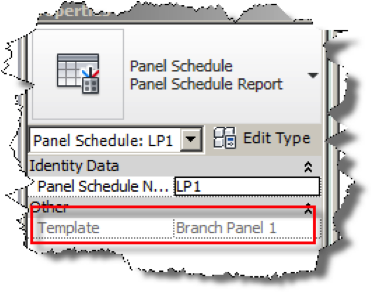
Then note the Template setting in the Properties palette (in this example “Branch Panel 1”):

Then from the Panel Schedule Templates tool on the Manage ribbon, select Edit a Template:

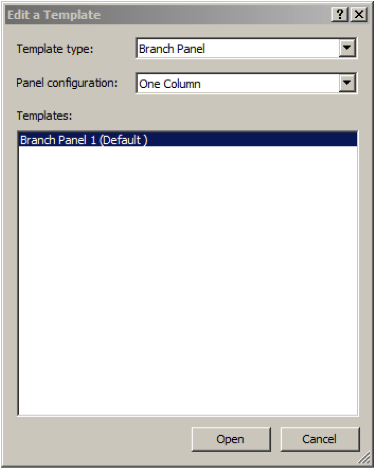
From the Edit a Template dialog, select the appropriate Panel Configuration (e.g. “One Column”) and then choose the Template from the list (e.g. “Branch Panel 1”), and choose Open:

This will then take you into the Modify Panel Schedule Template interface:

To change the column headers, simply select them and enter new values:

To change the number of circuit rows, select the Set Template Options tool from the ribbon, and change the value for Number of slots shown (e.g. 24):


The additional rows will be added to the template, then select Finish Template from the ribbon to save the changes. In order to see the changes, it is then necessary to delete the original panel schedule report (via the Project Browser) and then once again use Create Panel Schedule to re-write the panel schedule with the new template.


Bill Johnson
Ideate Senior MEP Application Specialist

Bill has over 20 years experience in applying AEC design solutions for large commercial companies. A graduate of Pasadena Institute of Technology, he has worked for TEECOM Design Group, GTE/GTEL, Greg LeDoux and Associates, and Scottish Power in England. Bill has also had the opportunity to act as Lead AutoCAD Designer for multimillion dollar communication sites which have included structural, electrical, HVAC, conduit, cable plans and equipment layouts. He has a Sustainable Design Certification from the University of California at Berkeley.

Get it. Know it. Use it.

July 19, 2012

eLearning – Upcoming Open Classes

Join the Ideate Tech Experts for eLearning – live online classes that provide your entire organization with easy access to premium education.

Upcoming classes include: 
7.24.12::Civil 3D 201:
Using the Intersection Design Tool
7.31.12::Revit 201:
Documenting Your Project in Revit MEP
Each class is designed to give you specific, improved results in a particular topic. You can interact with the instructor right from your own office, while eliminating travel time. Because the class schedule rotates, you can easily select your topics of interest and choose the day which best meets your schedule.

Click here for class descriptions, times and registration link. Questions? Contact education@ideateinc.com

Get It. Know It. Use It.

July 12, 2012

eLearning – Upcoming Open Classes

Join the Ideate Tech Experts for eLearning – live online classes that provide your entire organization with easy access to premium education.

Upcoming classes include: 
7.24.12::Civil 3D 201:
Using the Intersection Design Tool
7.31.12::Revit 201:
Documenting Your Project in Revit MEP
Each class is designed to give you specific, improved results in a particular topic. You can interact with the instructor right from your own office, while eliminating travel time. Because the class schedule rotates, you can easily select your topics of interest and choose the day which best meets your schedule.

Click here for class descriptions, times and registration link. Questions? Contact education@ideateinc.com

Get It. Know It. Use It.

June 5, 2012

Classroom Training – Open Classes

Know It. Ideate Training.

Position yourself to land dream projects. Tap the full potential of your software solutions. Increase your facility, fluidity and capability to maximize the value of your precision software tools.

Here are a few of the training opportunities Ideate has to offer in the coming weeks:
6.6-8::Portland
Revit Architecture Fundamentals
6.6-8::San Jose

Revit Architecture Fundamentals
6
.11-13::San Jose
Revit MEP – Mechanical and Plumbing Fundamentals
6.18-20::San Francisco

AutoCAD Fundamentals
Know your software. Sign up now!

May 15, 2012

Classroom Training – Open Classes

Know It. Ideate Training.

Position yourself to land dream projects. Tap the full potential of your software solutions. Increase your facility, fluidity and capability to maximize the value of your precision software tools.

Here are a few of the training opportunities Ideate has to offer in the coming weeks:
5.16-18::San Francisco
Revit MEP Electrical Fundamentals
5.30::
San Francisco
Revit MEP Overview
5.31::
San Francisco
Revit MEP Electrical
6.1::
San Francisco
Revit MEP Mechanical
Know your software. Sign up now!

May 8, 2012

Classroom Training – Open Classes

Know It. Ideate Training.

Position yourself to land dream projects. Tap the full potential of your software solutions. Increase your facility, fluidity and capability to maximize the value of your precision software tools.

Here are a few of the training opportunities Ideate has to offer in the coming weeks:
5.10-11::Seattle
BIM for Contractors
5.14-15::San Francisco
Revit Architecture Beyond the Basics
5.16-18::
San Francisco
Revit MEP Electrical Fundamentals
5.21-23::
San Francisco
Revit Architecture Fundamentals
Know your software. Sign up now!

April 18, 2012

What's New in Revit MEP 2013: Take this Route! – Duct and Pipe Routing Preferences

Autodesk Revit MEP 2013 has some great enhancements, one of the best is the new Duct and Pipe Routing Preference dialog boxes.

The new Pipe Segments are used in the new Routing Preference. The segments are assigned a material and schedule type, which in turn is used to automatically generate the pipe segment name. You no longer need to be concerned about the connection type as it has been removed.

Duct fittings have been moved to the Routing Preferences dialog as well. Multiple duct and pipe segments and fittings may be added to a routing preference to allow more efficient design and modeling. The Constrain to routing preferences tool applies to duct fittings and pipe fittings. When checked, the list of parts in the type selector is filtered to only show what is contained in the routing preference.

These new settings are:
  • For either Duct or Pipe
  • Can be constrained to routing preferences
  • Have unique material and schedule type combinations

Don’t forget to look through other great features our Ideate Technical Team has found in the new 2013 releases for Revit Architecture, Revit Structure, Civil 3D, AutoCAD, AutoCAD MEP, Navisworks and more: ideateinc.com/2013


Bill Johnson – MEP Solutions Application Specialist
Bill has over 20 years experience in applying AEC design solutions for large commercial companies. A graduate of Pasadena Institute of Technology, he has worked for TEECOM Design Group, GTE/GTEL, Greg LeDoux and Associates, and Scottish Power in England. Bill has also had the opportunity to act as Lead AutoCAD Designer for multimillion dollar communication sites which have included structural, electrical, HVAC, conduit, cable plans and equipment layouts. He has a Sustainable Design Certification from the University of California at Berkeley.

Get it. Know it. Use it.

April 16, 2012

What's New in Revit MEP 2013: This Fits Perfectly! Enhanced ASHRAE Duct Fitting Database

Revit MEP 2013 has some great enhancements; one of the most useful is the updated ASHRAE Duct Fitting Database. Revit now uses the latest 5.00.00 version of the ASHRAE duct fitting database. Many of the ASHRAE tables have been updated based on the latest standards. The new tables increase the coverage of pressure loss data for duct fittings.

In addition, oval fittings, taps, and tees where all of the ports are the same size are now supported.

With this enhancement MEP engineers can design duct systems with fittings based on current ASHRAE standards.


Don’t forget to look through other great features our Ideate Technical Team has found in the new 2013 releases for Revit Architecture, Revit Structure, Civil 3D, AutoCAD, AutoCAD MEP, Navisworks and more: ideateinc.com/2013


Bill Johnson – MEP Solutions Application Specialist
Bill has over 20 years experience in applying AEC design solutions for large commercial companies. A graduate of Pasadena Institute of Technology, he has worked for TEECOM Design Group, GTE/GTEL, Greg LeDoux and Associates, and Scottish Power in England. Bill has also had the opportunity to act as Lead AutoCAD Designer for multimillion dollar communication sites which have included structural, electrical, HVAC, conduit, cable plans and equipment layouts. He has a Sustainable Design Certification from the University of California at Berkeley.

Get it. Know it. Use it.

March 30, 2012

What's New in Revit MEP 2013: I'm at a Loss Here! Pressure Loss Reports

Autodesk Revit MEP 2013 has some great enhancements; one of the best is the new Pressure Loss Reports that can be generated for either a single duct or pipe system or multiple systems. Revit MEP engineers and designers can set up reports in a number of ways that include whether or not to show the critical path used, etc. The report format can be saved for use later and obsolete reports can be deleted. Ultimately, leading to better design and document more efficient building systems and improve performance with better reporting.

These new Reports are:
  • For either Duct or Pipe Systems
  • Can be generated for either single or multiple systems
  • Can be saved as a HTML or CSV file type

Don’t forget to look through other great features our Ideate Technical Team has found in the new 2013 releases for Revit Architecture, Revit Structure, Civil 3D, AutoCAD, AutoCAD MEP, Navisworks and more: ideateinc.com/2013


Bill Johnson – MEP Solutions Application Specialist
Bill has over 20 years experience in applying AEC design solutions for large commercial companies. A graduate of Pasadena Institute of Technology, he has worked for TEECOM Design Group, GTE/GTEL, Greg LeDoux and Associates, and Scottish Power in England. Bill has also had the opportunity to act as Lead AutoCAD Designer for multimillion dollar communication sites which have included structural, electrical, HVAC, conduit, cable plans and equipment layouts. He has a Sustainable Design Certification from the University of California at Berkeley.

Get it. Know it. Use it.