Showing posts with label AutoCAD Civil 3D 2013. Show all posts

April 2, 2013

Civil 3D 2014 and Civil 3D 2013 File Interoperability and OS Requirements

At Ideate, we are on top of the new releases of Autodesk 2014 software. One of the most exciting features of the Civil 3D 2014 release is its backward compatibility with Civil 3D 2013. This is great news, as it means that files started in 2014 can be opened and edited in 2013 and, users can work in either version throughout a project. 
 

Most Civil 3D object types are editable; however you may see some limitations when editing certain object types in 2013 that are new, or have additional functionality in 2014. Specifically, pressure pipe networks have enhanced editing features and are Data Shortcut compatible in 2014 but not in 2013. You can check out our video specifically highlighting these additional pressure pipe network editing features.
 

Along with file compatibility, we also took a look at Operating System support for the Civil 3D 2014 release. Looking back at OS support for the past two releases, we see that 2013 version is supported on Windows XP and Windows 7. Civil 3D 2014, however, will be supported on Windows 7 and Windows 8 only and not on Windows XP. For those of you who intend to use both versions of the product, Windows 7 will be the only OS compatible with both releases. Keep that in mind if you’re considering an upgrade in the near future.

Don’t forget to look through other great features our Ideate Technical Team has found in the new 2014 releases for Revit MEP, Revit Structure, Revit Architecture, AutoCAD and more: ideateinc.com/2014


Kate Ming
Ideate AEC Application Specialist

Kate has a BS in Civil and Environmental Engineering from UC Berkeley. Prior to Ideate, she worked at a multinational company for four years doing general civil design on large infrastructure projects. She is versed in roadway, rail, and utility design. She also has experience with utility demand analysis and Low Impact Development plans. At Ideate, Kate provides training and support for Civil 3D, AutoCAD, and Navisworks.  

Get it. Know it. Use it.

March 5, 2013

Classroom Training – Open Classes

Know It. Ideate Training.

Position yourself to land dream projects. Tap the full potential of your software solutions. Increase your facility, fluidity and capability to maximize the value of your precision software tools.

Here are a few of the training opportunities Ideate has to offer in the coming weeks:
3.6-8::Portland
Revit Architecture Fundamentals
3.
6-8::San Francisco
Civil 3D Fundamentals
3.11-12::
Sacramento

Revit Beyond the Basics
3.13-15::
San Francisco

AutoCAD Fundamentals
Know your software. Sign up now!

February 20, 2013

Get the Edge in 2013, Get Autodesk Certified!

Autodesk certifications are a reliable validation of your skills and knowledge. They can lead to accelerated professional development, improved productivity, and enhanced credibility in your field. 

Ideate, Inc. is an Authorized Certification Center (ACC) offering Autodesk Certified User exams for AutoCAD, AutoCAD Civil 3D and Revit Architecture. 

In 2013 Ideate will be sponsoring three (3) Autodesk Certification days: March 29th, June 28th and September 27th at our Seattle, Portland, San Francisco and San Jose offices. 

You can purchase your exam(s) online at: http://ideateinc.com/educate/certification.html

*No same day retakes. Ideate is not responsible for exam score.

For more information email education@ideateinc.com or call 888.662.7238 x1012.

January 30, 2013

Get the Edge in 2013 – New Year’s Training Bundles from Ideate

Competition in today’s marketplace is fierce, and technology advances in the New Year stand to demand even more of AEC professionals. Being well-qualified and skilled in real-world applications of software solutions helps position you for new projects and industry recognition. Let these New Year’s Training Specials from Ideate, Inc. give you the edge.

Revit Architecture – Special New Year’s Bundle
• Revit Architecture Fundamentals
• Revit Architecture Beyond the Basics
• 6 Revit 201s – Online
1 Revit Architecture 2013 Professional Certification Exam
--->All for $2013  
 AutoCAD Civil 3D – Special New Year’s Bundle
• AutoCAD Fundamentals
• Civil 3D for Beginners – Online
• Civil 3D Fundamentals or Civil 3D for Surveyors
• AutoCAD Update Course
• 1 AutoCAD Civil 3D 2013 Professional Certification Exam

--->All for $2013  
AutoCAD – Special New Year’s Bundle
• AutoCAD Fundamentals
• AutoCAD Beyond the Basics
• AutoCAD Update
• 1 AutoCAD 2013 Professional Certification Exam

--->All for $2013  
Phone: 888.662.7238
Email: education@ideateinc.com
Expires: Training must be purchased by March 29, 2013.
Classes must be taken one year from date of purchase


Rules and Restrictions:
• Training bundles must be purchased by March 29, 2013.
• No refunds for unused training.
• Classes must be taken one year from date of purchase. No extensions.
• Good for (1) individual. No substitutions.
• Certification tests offered in four locations: San Francisco, San Jose Portland, Seattle
• One test per individual. No retaking of exam unless paid for by individual. Ideate not responsible for passing grade.

January 9, 2013

How to Add a Segment/(s) to an Alignment

During training at Ideate, Inc, we are often asked how to add segment to an alignment.
 

Adding a segment to an alignment works sometimes and other times the alignment style seems to get applied but station labels do not appear. If you have been using Civil 3D before then I am positive you have seen this.
 

So the concept is, just as an alignment has a direction, every component of an alignment: lines, curves and spirals have a direction, which is displayed by the arrow component of the alignment style. If the direction of this segment is against the main alignment direction, the labels do not appear even though the segment gets added to the alignment – evident because color changes: alignment style gets applied. Here is how it works.
 

When you click on the button “Convert AutoCAD Line and arc” to add the lines/arcs at the beginning or end of the alignment to the alignment as shown below:


1. Labels do not appear even though the segment got added to the alignment. In the figure below you can see the white AutoCAD line turn green.


2. Click on the button “Reverse Sub-entity Direction” which is one icon to the right of “Convert AutoCAD Line and arc” icon as shown below.


See the label -0+59 appears as below:


That’s it; you are done. Now go ahead and add other segments as necessary.
 

If the negative station number is unacceptable, change it via the Reference Point under the Station Control tab of Alignment Properties.


Gaurav Bagga

Ideate Infrastructure Solutions Application Specialist


Gaurav is a well rounded Application Engineer and Project Manager for Infrastructure Solutions at Ideate based out of San Francisco. He has over 15 years experience in construction industry and has been helping numerous small, medium and ENR 500 firms maximize their CAD investment for the last ten years. Gaurav is an Autodesk Certified Instructor and Autodesk Civil 3D Implementation Certified Expert. He has taught at several conferences, CAD Camps and Autodesk University. He has taught AutoCAD, Civil 3D, Land Desktop and Map 3D to thousands of students and helps Ideate develop the Infrastructure Services curriculum and courses. With his extensive CAD technology background he helps Bay Area engineering and surveying firms analyze and improve their design and drawing production process thereby improving productivity and the bottom line. Follow Gaurav on Twitter: @BeGeez

Get it. Know it. Use it.

January 2, 2013

Civil 3D Pipe Network Error: Script Control (msscript.ocx)

Update:
One of our customers here at Ideate ran into the MSScript.ocx error recently and was able to find a forum post with a reported solution to try before reformatting. Check it out here:

http://forums.autodesk.com/t5/AutoCAD-MEP/msscript-ocx-AutoCAD-MEP-2012/td-p/3574092

Thanks to Justin Zampardi from Mead & Hunt for providing us with the info!


Recently, while teaching a class for one of our customers I noticed that my Pipe Network commands in Civil 3D were not working (both 2012 and 2013). When I attempted to create a Pipe Network both from an object and using the Network Layout Tools, I received the same repetitive error at the command line.
 

The error said:
 

ERROR: Calculation Failed with Part Table AeccCircularConcretePipe_Imperial There is a problem with the Script Control (msscript.ocx). This problem may be corrected by reinstalling Internet Explorer or by reregistering the control.
 

After doing some research on the issue and contacting Autodesk, I was informed that the issue was Microsoft related, and could possibly be fixed through this process:
 

First, install the script control from: http://support.microsoft.com/kb/184739
 

Also, the version of Internet Explorer (IE) 7, IE8, and IE9 may be preventing it from operating, so try to uninstall it and reinstall it. 

Once that is complete, do the following:
  1. Go to Start All Programs Accessories.
  2. Right-click Command Prompt and choose “Run as administrator.”
  3. Enter the command:
    Regsvr32 C:\Windows\SysWOW64\msscript.ocx
    (Copy/Paste by right-clicking in the command prompt window to do the paste)
  4. Click OK on the message that says the file registration succeeded.
  5. On the keyboard, hold down the WINDOWS key and then hit R.
  6. In the Run window, type REGEDIT and then click OK.
  7. Find the following folder:
    HKEY_CLASSES_ROOT\TypeLib\(0E59F1D2-1FBE-11D0-8FF2-00A0D10038BC)\1.0\0\win32
  8. Right-click the win32 folder and choose “Permissions.”
  9. Make sure the administrator group has full control.
  10. With the win32 folder selected, make sure the (Default) key at the right is set to the following path with no quotes around it: C:\Windows\SysWOW64\msscript.ocx
  11. Close the Registry Editor.
After attempting the instructions above, as well as doing a clean reinstall of Autodesk products, nothing resolved the issue. Unfortunately for me, in some extreme cases (which this happened to be) a complete reformat of the OS is required in order to fix the issue with the .OCX file. 

After reformatting and reinstalling everything, I can gladly report that Civil 3D is back up and running with the issue resolved.

I hope you’ll never run into this error, but if you do, those are your options.


Matt Miyamoto, P.E.
Ideate AEC Application Specialist

Matt is a licensed Civil Engineer in the state of Hawaii. Matt obtained a BS in Mechanical Engineering from the University of Hawaii at Manoa, and has 7 years of private sector design experience which he applies in his role as an application specialist with Ideate, Inc. His project experience includes residential and commercial site development, private and public sewer, water and drainage systems, harbors improvements, and roadway improvements. While in Hawaii, Matt was involved in multidisciplinary projects for City and County agencies, State Departments, the Army COE and private developers. @MattM_PE

Get it. Know it. Use it.
December 31, 2012

Classroom Training – Open Classes

Know It. Ideate Training.

Position yourself to land dream projects. Tap the full potential of your software solutions. Increase your facility, fluidity and capability to maximize the value of your precision software tools.

Here are a few of the training opportunities Ideate has to offer in the coming weeks:
1.14-16::Sacramento
Revit MEP Mechanical and Plumbing Fundamentals
1.16-18::Seattle
Civil 3D Fundamentals
1.23-25::San Francisco
Revit MEP Electrical Fundamentals
1.23-25::San Francisco
Revit Architecture Fundamentals
Know your software. Sign up now!

December 24, 2012

Classroom Training – Open Classes

Know It. Ideate Training.

Position yourself to land dream projects. Tap the full potential of your software solutions. Increase your facility, fluidity and capability to maximize the value of your precision software tools.

Here are a few of the training opportunities Ideate has to offer in the coming weeks:
12.26-28::San Francisco
Revit MEP Mechanical and Plumbing Fundamentals
1.7-9::
Sacramento

Revit Architecture Fundamentals
1.14-16::
Sacramento
Revit MEP Mechanical and Plumbing Fundamentals
1.14-16
::
San Francisco
AutoCAD Fundamentals
1.16-18::Portland
Revit Architecture Fundamentals
1.16-18
::
Seattle
Civil 3D Fundamentals
Know your software. Sign up now!

December 18, 2012

Classroom Training – Open Classes

Know It. Ideate Training.

Position yourself to land dream projects. Tap the full potential of your software solutions. Increase your facility, fluidity and capability to maximize the value of your precision software tools.

Here are a few of the training opportunities Ideate has to offer in the coming weeks:
12.26-28::San Francisco
Revit MEP Mechanical and Plumbing Fundamentals
1.7-9::
Sacramento

Revit Architecture Fundamentals
1.14-16::
Sacramento
Revit MEP Mechanical and Plumbing Fundamentals
1.14-16
::
San Francisco
AutoCAD Fundamentals
1.16-18
::
Seattle
Civil 3D Fundamentals
Know your software. Sign up now!

December 11, 2012

Classroom Training – Open Classes

Know It. Ideate Training.

Position yourself to land dream projects. Tap the full potential of your software solutions. Increase your facility, fluidity and capability to maximize the value of your precision software tools.

Here are a few of the training opportunities Ideate has to offer in the coming weeks:
12.26-28::San Francisco
Revit MEP Mechanical and Plumbing Fundamentals
1.14-16::
Sacramento
Revit MEP Mechanical and Plumbing Fundamentals
1.14-16
::
San Francisco
AutoCAD Fundamentals
1.16-18
::
Seattle
Civil 3D Fundamentals
Know your software. Sign up now!

October 10, 2012

Civil 3D 2013 Pressure Network Parts - Part 3

In our previous two Pressure Network Part blogs, my Ideate, Inc. colleague and friend Matt Miyamoto wrote about how to create a pressure network part from an AutoCAD 3dsolid object and export it to a .CONTENT file, then import the .CONTENT file into the content catalog. In Part Three, we go over the process for adding the new part to the Pressure Network Parts List for use in your Civil 3D drawing.
 

So, in short, the summary of the previous process:
  1. Create an AutoCAD 3dsolid or import a block that contains 3dsolid object for the part required.
  2. Insert/Create Autodesk Connection Point (ACP) object/(s)
  3. Publish the part and save it in its .CONTENT file
  4. Open Content Catalog Editor from Windows Start menu and import the .CONTENT file in the and save the pressure network catalog database .SQLITE file (before importing be sure to backup the out of the box original .SQLITE file)
Pressure Network blog post Part 1 encompasses step 1, 2 and 3 above and Part 2 elaborates on step 4.

In this post I will show you Step 5 -  i.e. how to import the catalog part into pressure network parts list within Civil 3D so you can use it in your design.
 

Importing the Custom Part into Civil 3D Pressure Network Parts List
 

1. Open a drawing within Civil 3D and navigate to Home > Create Design > Set Pressure Pipe Network Catalog.

2. Set the appropriate Pressure Network Catalog (.SQLITE file that you saved earlier in step 4 per our blog post Part 2). Hopefully you have backed up the original - you can see I backed up mine.

3. Edit the existing Part List or create a new one. I am editing the existing pressure network parts list “Water” (found in the default Civil 3D Imperial template) in this example. Go to Toolspace > Settings > Pressure Network > Parts Lists > Water: right click and chose Edit.

4. I am trying to create a fire hydrant so I will be adding it in the Pressure Network Parts List > Appurtenances tab


5. Right click on Water and click on Add type, pick “hydrant” or whatever name you gave to the part family. Right click on the hydrant and add the hydrant/part you created.


6. Finally, choose the hydrant/part you created by creating a new or editing an existing pressure network; under Plan Layout tab click on Add Appurtenances


You can find more information in the Part Publishing Wizard User Guide saved with the default Civil 3D install at the following location: C:\Program Files\Autodesk\AutoCAD Civil 3D 2013\Sample\Civil 3D API\Part Publishing Wizard\PartPublishingWizardUsersGuide.docx.
 

Lastly, please keep in mind that customization is generally unsupported by Autodesk and Ideate Technical Support so a lot of trial and error and testing may be involved in the Pressure Part creation process.


Gaurav Bagga

Ideate Infrastructure Solutions Application Specialist


Gaurav is a well rounded Application Engineer and Project Manager for Infrastructure Solutions at Ideate based out of San Francisco. He has over 15 years experience in construction industry and has been helping numerous small, medium and ENR 500 firms maximize their CAD investment for the last ten years. Gaurav is an Autodesk Certified Instructor and Autodesk Civil 3D Implementation Certified Expert. He has taught at several conferences, CAD Camps and Autodesk University. He has taught AutoCAD, Civil 3D, Land Desktop and Map 3D to thousands of students and helps Ideate develop the Infrastructure Services curriculum and courses. With his extensive CAD technology background he helps Bay Area engineering and surveying firms analyze and improve their design and drawing production process thereby improving productivity and the bottom line. Follow Gaurav on Twitter: @BeGeez

Get it. Know it. Use it.

September 19, 2012

Little Things Making a Difference… New in Civil 3D 2013

There have been a number of object and feature enhancements made to Civil 3D 2013, but not all of them have gotten as much attention as Pressure Pipe Networks and Railway Alignments.

In today’s blog post, Application Specialist Matt Miyamoto takes a look at some of the less known new features of Civil 3D 2013 related to Assemblies and Corridors.

The first enhancement that has gone relatively unnoticed is the new Automatic Side Detection feature that is now coded into the stock SubAssemblies in the Toolpalettes. This new feature allows users to quickly add components to both right and left sides of their Assemblies without worrying about switching the Side Parameter in the SubAssembly Properties. It also avoids inadvertently adding a right-side component to the left side of your Assembly.

With Automatic Side Detection, once the initial components have been added (right lane and left lane); the corresponding SubAssemblies automatically conform to match the side they are attached to. You can now build the right and left sides of your Assembly simultaneously with relative ease.

Another enhancement made to 2013 is the Simplified Corridor Modeling Workflow. In previous releases of Civil 3D, there were always two options for creating a Corridor object; Create Corridor and Create Simple Corridor.  Regardless of which command was used, the same type of Corridor object was generated. 

In 2013, the process has been reduced to a single Corridor command, and the command dialog has been enhanced to allow users to directly specify the Alignment, Profile, Assembly and target Surface in one place.  This process previously involved a series of Command prompts and selection either from the drawing or from lists.  Having everything in one dialog simplifies the process, makes it more efficient, and helps to reduce errors encountered when target surfaces are not selected in the initial process.

Although these aren’t the biggest features added, they are definitely worth paying some attention to when you’re working in Civil 3D 2013.


Matt Miyamoto, P.E.
Ideate AEC Application Specialist

Matt is a licensed Civil Engineer in the state of Hawaii. Matt obtained a BS in Mechanical Engineering from the University of Hawaii at Manoa, and has 7 years of private sector design experience which he applies in his role as an application specialist with Ideate, Inc. His project experience includes residential and commercial site development, private and public sewer, water and drainage systems, harbors improvements, and roadway improvements. While in Hawaii, Matt was involved in multidisciplinary projects for City and County agencies, State Departments, the Army COE and private developers. @MattM_PE

Get it. Know it. Use it.

September 11, 2012

Classroom Training – Open Classes

Know It. Ideate Training.

Position yourself to land dream projects. Tap the full potential of your software solutions. Increase your facility, fluidity and capability to maximize the value of your precision software tools.

Here are a few of the training opportunities Ideate has to offer in the coming weeks:
9.18::San Francisco
Revit Architecture Families
9.20::Portland
Revit Architecture Families
9.24-26::
San Francisco
Revit Architecture Fundamentals
9.24-26::
San Jose
Civil 3D Fundamentals
Know your software. Sign up now!

September 4, 2012

Classroom Training – Open Classes

Know It. Ideate Training.

Position yourself to land dream projects. Tap the full potential of your software solutions. Increase your facility, fluidity and capability to maximize the value of your precision software tools.

Here are a few of the training opportunities Ideate has to offer in the coming weeks:
9.10-12::Portland
Revit Architecture Fundamentals
9.10-12::San Francisco
Revit MEP Mechanical and Plumbing Fundamentals
9.20::Portland
Revit Architecture Families
9.24-26::
San Francisco
Revit Architecture Fundamentals
9.24-26::
San Jose
Civil 3D Fundamentals
Know your software. Sign up now!

August 30, 2012

eLearning – Upcoming Classes

Join the Ideate Tech Experts for eLearning – live online classes that provide your entire organization with easy access to premium education.

Upcoming classes include: 
9.4.12::Ideate 101:
Network License Manager
9.11.12::Revit 201:
Converting Blocks to Families
9.13.12::Revit 201:
Stairs and Railings in Revit
9.18.12::Civil 3D 201:
Analysis for Master-Planning
Each class is designed to give you specific, improved results in a particular topic. You can interact with the instructor right from your own office, while eliminating travel time. Because the class schedule rotates, you can easily select your topics of interest and choose the day which best meets your schedule.

Click here for class descriptions, times and registration link. Questions? Contact education@ideateinc.com

Get It. Know It. Use It.

August 16, 2012

eLearning – Upcoming Classes

Join the Ideate Tech Experts for eLearning – live online classes that provide your entire organization with easy access to premium education.

Upcoming classes include: 
8.20.12::Civil 101:
Civil 3D for Beginnners
8.21.12::
Revit 201:
Site Tools
8.30.12::
Revit 201:
Revit for Interior Designers
Each class is designed to give you specific, improved results in a particular topic. You can interact with the instructor right from your own office, while eliminating travel time. Because the class schedule rotates, you can easily select your topics of interest and choose the day which best meets your schedule.

Click here for class descriptions, times and registration link. Questions? Contact education@ideateinc.com

Get It. Know It. Use It.

August 15, 2012

Civil 3D 2013 Pressure Network Parts – Part 2

To quickly recap our situation (Part 1), the new Pressure Pipe Networks use .SQLITE files along with the folders containing drawing information for the network components. Adding information to these SQLITE files requires the use of two new commands and the new Content Catalog Editor application that comes with Civil 3D 2013.

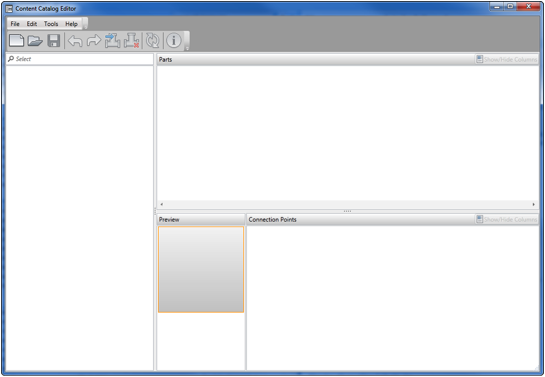
In our last Pressure Network Parts article, we discussed the two new commands in Civil 3D 2013 that help users create custom defined Pressure Network Parts from AutoCAD 3D Solids. In today’s article we take a look at the Content Catalog Editor application that is used to import the new part into the .SQLITE database.

The Content Catalog Editor is an external application that comes with Civil 3D 2013 and can be launched from the Windows Start Menu (Start → All Programs → Autodesk → AutoCAD Civil 3D 2013 → Content Catalog Editor). This application imports the .CONTENT file created in our first article and saves that to the .SQLITE catalog file containing the Pressure Network Parts.

NOTE: This does not automatically add the new part to existing Part Lists in Civil 3D. The new part must be added to your Part List before you will be able to use that part in a drawing.

Here’s the breakdown on how to Import the .CONTENT file to your .SQLITE catalog file.

Launch the Content Catalog Editor application (Start → All Programs → Autodesk → AutoCAD Civil 3D 2013 → Content Catalog Editor) 

Open the existing .SQLITE file you want to add the new part to (we recommend creating a copy of the original .SQLITE file as a backup prior to making any changes).

Click Import Part

Follow the instructions in the Import Part Dialog to select the .CONTENT File, and set parameters for Part Type, Properties and Connection Points

On the last page of the dialog Click Finish, then verify that your new part has been added to the catalog and Save the modified .SQLITE File using the Content Catalog Editor

Once the .SQLITE file has been saved with the new content added, launch Civil 3D and use the Settings tab of the Toolspace to add the new part to your Pressure Network Parts list. From there, you’ll be able to select the part when working on Pressure Network designs.


Matt Miyamoto, P.E.
Ideate AEC Application Specialist

Matt is a licensed Civil Engineer in the state of Hawaii. Matt obtained a BS in Mechanical Engineering from the University of Hawaii at Manoa, and has 7 years of private sector design experience which he applies in his role as an application specialist with Ideate, Inc. His project experience includes residential and commercial site development, private and public sewer, water and drainage systems, harbors improvements, and roadway improvements. While in Hawaii, Matt was involved in multidisciplinary projects for City and County agencies, State Departments, the Army COE and private developers. @MattM_PE

Get it. Know it. Use it.

August 9, 2012

eLearning – Upcoming Classes

Join the Ideate Tech Experts for eLearning – live online classes that provide your entire organization with easy access to premium education.

Upcoming classes include: 
8.14.12::Revit 201:
Worksharing Best Practices
8.20.12::Civil 101:
Civil 3D for Beginners
8.21.12::
Revit 201:
Site Tools
Each class is designed to give you specific, improved results in a particular topic. You can interact with the instructor right from your own office, while eliminating travel time. Because the class schedule rotates, you can easily select your topics of interest and choose the day which best meets your schedule.

Click here for class descriptions, times and registration link. Questions? Contact education@ideateinc.com

Get It. Know It. Use It.

August 6, 2012

Civil 3D 2013 Pressure Network Parts – Part 1

If you’ve seen the new Civil 3D 2013 Pressure Network tools, you may be wondering how you can go about creating your own Pressure Network Parts.  With previous releases of Civil 3D and its gravity flow systems, the Part Builder tool was used to create and modify network components. 

Because Pressure networks are a different type of object, their part catalogs are also different. Pressure networks use .SQLITE files along with the folders containing drawing information for the network components. Adding information to these SQLITE files requires the use of two new commands and the new Content Catalog Editor application that comes with Civil 3D 2013.

In today’s blog, we discuss the two new commands in Civil 3D that are used to create connection points and publish content files for useable parts.

The first command is called AUTODESKCONNECTIONPOINT. This command is used to add and define connection points on user defined pressure network parts. A connection point needs to be added anywhere a new part connects to an existing part or is intended to connect to additional parts. For example, a Fire Hydrant would have one connection point where it connects to the pipe segment feeding it. A Backflow Preventer would have two connection points, one for the inlet and one for the outlet of the pipeline it services. Along with specifying the location of the connection, the AUTODESKCONNECTIONPOINT command also allows users to identify the direction of the parts being created.


The second command is called PUBLISHPARTCONTENT.  This command takes the geometrical and engineering data from the user defined part and publishes it out to a .CONTENT file.  This file can then be imported into the .SQLITE catalog file using the Content Catalog Editor.  The PUBLISHPARTCONTENT command asks users to specify an AutoCAD 3D Solid object to use as the new part, a line defining the centerline, units for the part dimensions, and the type of part being created.  When the command is complete, a .CONTENT file will be generated and saved for importing into the catalog.


Here are a few tips when working with the Part Publishing Tools in Civil 3D.
  1. Use the CUI or PGP file to create shortcuts of the two commands.  AUTODESKCONNECTIONPOINT and PUBLISHPARTCONTENT are rather long to be typed in manually (ACP and PPC work well).
  2. New parts need to be a unified 3D Solid object.
  3. If you want to create a highly detailed part from multiple solids, use the UNION command in the 3D Modeling toolspace to combine the elements prior to publishing.
  4. Use a Wireframe or 2D Wirefame visual style when working with the 3D Solid to make lines and elements easier to select.
  5. The Realistic, Conceptual and Shaded styles can be used to preview the new part prior to publishing.
  6. Materials applied to the 3D Solid prior to publishing are saved with the part definition. That material will show up on the list of Render Materials in the object’s Properties after it is added to a Pressure Network.
  7. Some pre-defined 3D blocks can be exploded into 3D Solids and used for creating parts (make sure they are 3D Solids after exploding).
So if you’re looking for a few parts that aren’t part of the pre-defined list, give the Part Publisher tools a try. With some basic 3D Modeling skills, you’ll be on your way to creating your very own custom Pressure Network parts.

Check back for Part 2 on adding the new part to the .SQLITE catalog using the Content Catalog Editor.


Matt Miyamoto, P.E.
Ideate Infrastructure Solutions Application Specialist

Matt is a licensed Civil Engineer in the state of Hawaii. Matt obtained a BS in Mechanical Engineering from the University of Hawaii at Manoa, and has 7 years of private sector design experience which he applies in his role as an application specialist with Ideate, Inc. His project experience includes residential and commercial site development, private and public sewer, water and drainage systems, harbors improvements, and roadway improvements. While in Hawaii, Matt was involved in multidisciplinary projects for City and County agencies, State Departments, the Army COE and private developers. @MattM_PE

Get it. Know it. Use it.

July 19, 2012

eLearning – Upcoming Open Classes

Join the Ideate Tech Experts for eLearning – live online classes that provide your entire organization with easy access to premium education.

Upcoming classes include: 
7.24.12::Civil 3D 201:
Using the Intersection Design Tool
7.31.12::Revit 201:
Documenting Your Project in Revit MEP
Each class is designed to give you specific, improved results in a particular topic. You can interact with the instructor right from your own office, while eliminating travel time. Because the class schedule rotates, you can easily select your topics of interest and choose the day which best meets your schedule.

Click here for class descriptions, times and registration link. Questions? Contact education@ideateinc.com

Get It. Know It. Use It.