
If you just upgraded to Autodesk Map 3D 2010, and are wondering where to find your Map pull down menu, please follow the link below to a video which will show you exactly where to find it.
http://www.youtube.com/watch?v=cM2lVI9ZL2Y&feature=channel_page
-Daniel Armstrong, Ideate Inc
April 23, 2009


April 15, 2009
Changing Recent Input options in the Right click menu...
This is an issue that came up in Support today regarding right click functionality. The user was having trouble using the “recent input” list from the right click menu. When they right clicked in the drawing space, they would see all the other options, but not this one.
The customer's system had this set properly, so we moved on to the INPUTHISTORYMODE. Now this is apparently a variable from way back, which ‘Controls the content and location of the display of a history of user input’ and needs to be set to 15 to register maximum Recent inputs. Checking this variable showed that it was actually set to 4, and when we changed it to 15, the Recent Input option showed up:
Also, after messing about with the variable a bit I’ve discovered that if you change the INPUTHISTORYMODE to 10, the Recent Input will show up, but it won’t log the command unless you use it 3 times. Just some more obscure AutoCAD knowledge that I’ve managed to acquire which might save the world one day!
Daniel Childs, Ideate Inc

The customer's system had this set properly, so we moved on to the INPUTHISTORYMODE. Now this is apparently a variable from way back, which ‘Controls the content and location of the display of a history of user input’ and needs to be set to 15 to register maximum Recent inputs. Checking this variable showed that it was actually set to 4, and when we changed it to 15, the Recent Input option showed up:

Also, after messing about with the variable a bit I’ve discovered that if you change the INPUTHISTORYMODE to 10, the Recent Input will show up, but it won’t log the command unless you use it 3 times. Just some more obscure AutoCAD knowledge that I’ve managed to acquire which might save the world one day!
Daniel Childs, Ideate Inc
April 10, 2009
Creating a Profile from Feature Lines
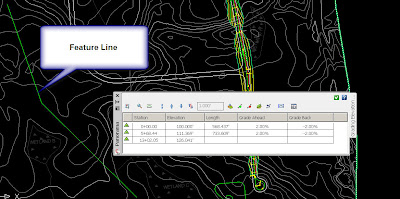
Yesterday, we had a customer ask us how to create a profile from a grading feature line. This is a good question and after searching the discussion groups, I found the workaround. It should be noted that 2010 will allow for this as a command without requiring a workaround. Here are the workaround steps if you're not using 2010:
Create a Quick Profile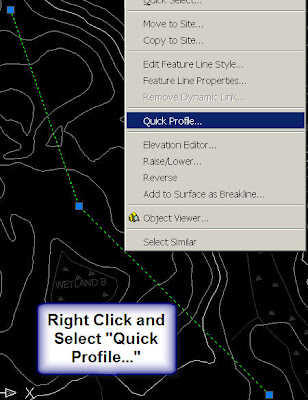

Here we have a feature line:
Create a Quick Profile
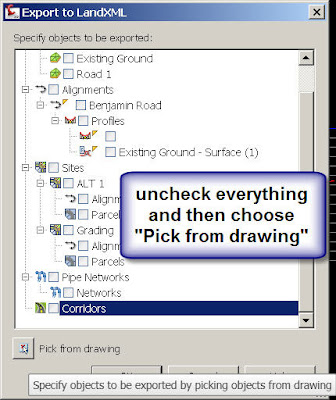
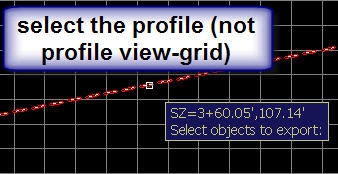
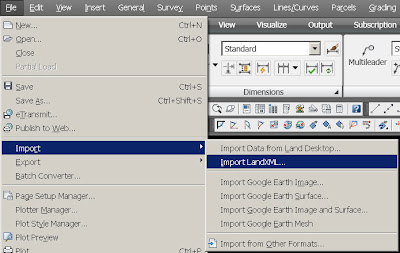
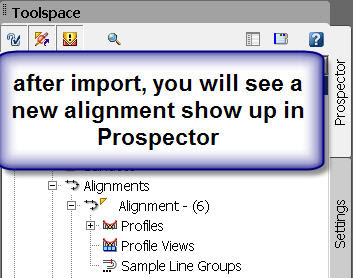
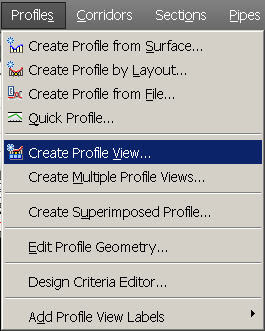
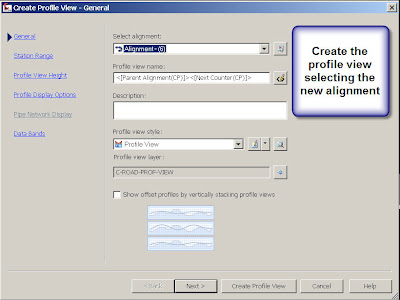
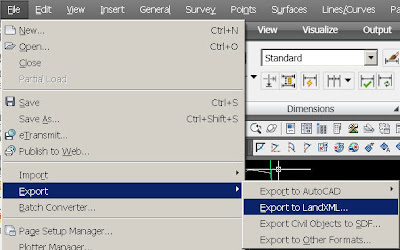
As we know, Quick Profiles are temporary and disappear as soon as the drawing is saved. Therefore, we need a way of making the temporary profile more permanent. To do this, we will export to Land XML and the import it back via Land XML using the following steps:
March 24, 2009
Profile View Labels Overlapping
I am sure we have all seen this, at the end of a profile view, the last two labels sometimes overlap. There is an option to turn off the beginning station label, but not the end station. (For Profile Views turning off the end station (both horizontal & vertical) is on the wish list DID 918219).
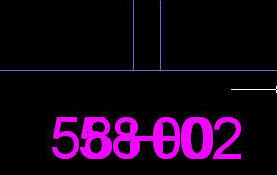 Until this wish is granted, a work around is to use wipeout and then re-label using a custom general note.
 Step 2: Create a closed polyline around the text and then use the WIPEOUT command. You will also want to turn off the frame.
Some time will be needed to create the Note Label Style to match that of the Profile View labels. But, once you have it created you are good to go. You will want to match the Y-offset, anchor points, text style, etc.
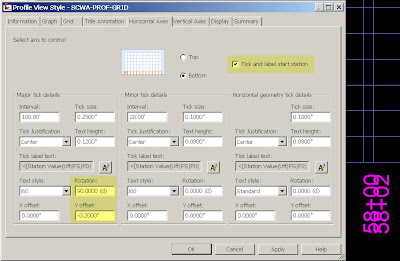
Until this wish is granted, a work around is to use wipeout and then re-label using a custom general note.Step 1: Rotating the labels 90 degrees can help. This is done in the Profile View Style. Note that there is a checkbox that can be unchecked here that will turn off the Start Station Tick and Label. So if you have overlap at the beginning of the Profile View, its as easy as unchecking the box.
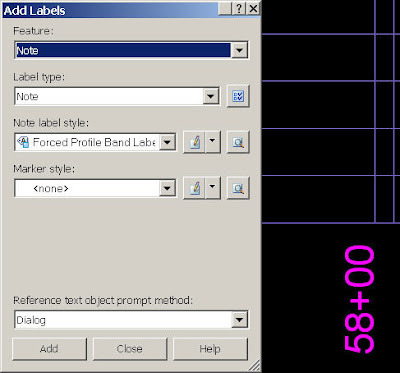
 Step 3: Now that the offending labels are no longer visible, we need to recreate one of the labels (or both and then you can adjust them as needed) using the General>Add Labels.
Some time will be needed to create the Note Label Style to match that of the Profile View labels. But, once you have it created you are good to go. You will want to match the Y-offset, anchor points, text style, etc.
- Rebecca Ferguson, Ideate Inc
Subscribe to:
Posts (Atom)